
GPT Image Aspect Ratio and Safe Zones: Crop, Frame, and Type Placement
September 2026: Lock one GPT Image 2 / gptimage 2 frame at a time—how to write 1:1, 4:5, 9:16, and 16:9 safe zones, Bad→Good prompts, and a ship checklist.
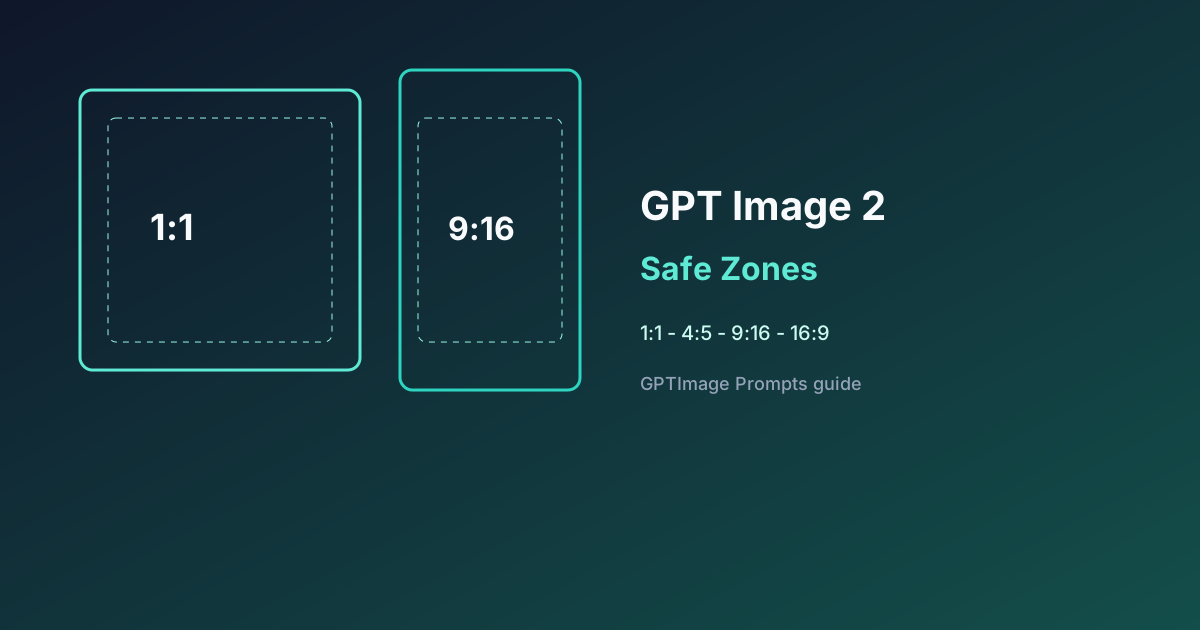
Searching for GPT Image aspect ratio, AI image crop, or gptimage 2 safe zone usually means the subject got clipped, the title sat under platform chrome, or one file was forced into every channel. This guide gives a copy-ready frame Brief so a generated image is publishable per placement.
Independent resource site — not affiliated with OpenAI. Platform crop rules change; preview before you ship.
Platform size tables live in the social poster tutorial. This page is only about locking ratio and safe zones in the prompt.
1. Pick one frame
Lock a single ratio per generation. For more sizes, rerun the same subject. Do not ask for “all platforms in one image.”
| Deliverable | Ratio | Where type goes |
|---|---|---|
| Square product / packshot | 1:1 | Badge inset; about 8% margin |
| Feed portrait | 4:5 | Headline in the upper third |
| Poster | 3:4 | Headline inside the safe frame; see Chinese poster text |
| Story / Reels cover | 9:16 | Keep top and bottom ~12–15% clear; title in the middle |
| Landscape thumbnail | 16:9 | Title left or lower-center; avoid the bottom-right bug |
Context: prompt hub · thumbnails · multi-turn.
2. Frame Brief (copy-paste)
[Frame and safe-zone Brief]
Deliverable: vertical Story cover, ratio must be 9:16
Subject: product centered, fully in frame, not touching top or bottom
Safe zone: top 15% and bottom 15% contain no type and no logo
Title placement: vertical center, large, high contrast
On-image text (exact): "48H ONLY"
Avoid: 16:9 landscape, edge-hugging type, cropped product, watermark clutter
QC: in a 9:16 preview, the title stays out of the top and bottom safe zones
Key: Write “ratio must be 9:16” and give safe-zone percentages. Do not say “make it vertical and nice.”
3. Bad → Good
Bad:
Make a promo that works for every social app, big titleGood:
Thinking mode. GPT Image 2, ratio must be 9:16.
Product centered and complete. Top 15% and bottom 15% stay empty of type.
Title at vertical center, exact text: "48H ONLY".
High contrast, few words. No landscape crop, no edge titles, no clipped product.
When you change the frame, use a one-dimension edit: ratio and margins only. Do not change copy or the product. See multi-turn editing.
More scenes: Prompts · social · Prompts · poster · ecommerce.
4. Six rules
- One ratio per image. Generate 1:1, 4:5, 9:16, and 16:9 separately.
- Subject first, type second. Confirm the crop, then add the headline.
- Put percentages in the prompt. 9:16: top and bottom 12–15%. 1:1: about 8% margin.
- Type inside the safe frame, subject inside the subject frame. Do not sit either on the crop line.
- Do not rescue edge type by cropping later. A crop deletes the letters.
- Campaign sets: reuse the subject description and swap only ratio and safe zone. For tighter local edits, see GPT Image 2.5.
5. Scene notes
| Scene | Extra constraint |
|---|---|
| Product hero | 1:1; product off the edges; badge 4 characters or fewer, inset |
| Video cover | 16:9; title off the bottom-right; see thumbnails |
| Chinese poster | 3:4; title inside the safe frame; see Chinese text |
| UI screenshot | Match the device frame; controls off the corner crop |
6. Ship checklist
- The prompt names one ratio, and the file matches it
- 9:16 top and bottom safe zones have no title and no logo
- The subject is complete, not clipped by the frame
- The title sits inside the safe frame and reads on a phone
- Extra sizes are new generations, not one file hard-cropped
- A ratio edit did not also change copy, style, and product
7. Next
- Paste the Brief into the workbench flow and generate the first frame
- Fill the other sizes from the social poster tutorial
- Return to the prompt hub and drill into a scene
Frame and safe zone are how GPT Image / gptimage 2 avoids reshoots: one ratio, explicit percentages, type off the crop line. That beats “one image for every platform.”
Ready to create?
Jump to the App workbench and try GPT Image generation and multi-turn editing for free.
Start Creating Free →